Learning Virtual Machine with Multipass
Why do we need Virtual Machines? #
Exploring something new is safer to do in an isolated environment first. For example, in recent weeks I’ve been exploring whether Podman can replace Docker in my daily workflow.
It would be very risky if I directly replace Docker with Podman. Instead, I can experiment first through a VM (Virtual Machine), perform testing with several conditions I need, such as:
- Is it compatible with other applications that depend on Docker? in this case Tilt.dev
- Is it compatible with docker-compose?
- How do I run Kubernetes in Docker with Podman?
If I can answer the questions above, then my confidence increases to be able to replace Docker with Podman, and in the process I don’t need to tinker with my Host machine configuration, because the stability of the Host Machine is very important for the smoothness of daily work.
Instead, what I tinker with is the VM because if it fails, I just destroy and create a new VM again, do several iterations, until I can answer all the questions above.
Why Multipass? #
As an Ubuntu user, Multipass already covers what I need:
- Create VMs based on Ubuntu
- Can install several ubuntu versions 24.04, 20.04, etc.
- Start without configuration
Compared to Vagrant, I feel Multipass is an improvement!
How to create a VM #
For installation, you can check directly from the documentation. To create a VM use the command below.
multipass launch devboxdevbox is the name of the VM that you can change, you can also configure many CPU, Memory and Storage allocated for this VM.
multipass launch -c 2 -d 30G -m 2G --name devbox 24.04The command above means create a VM with 2 CPU, 30 Giga Storage, 2 Giga Memory, with the name devbox and Ubuntu version 24.04
SSH into the VM #
To start tinkering into the VM, we need to ssh first
multipass shell devboxTo start, try running htop
htop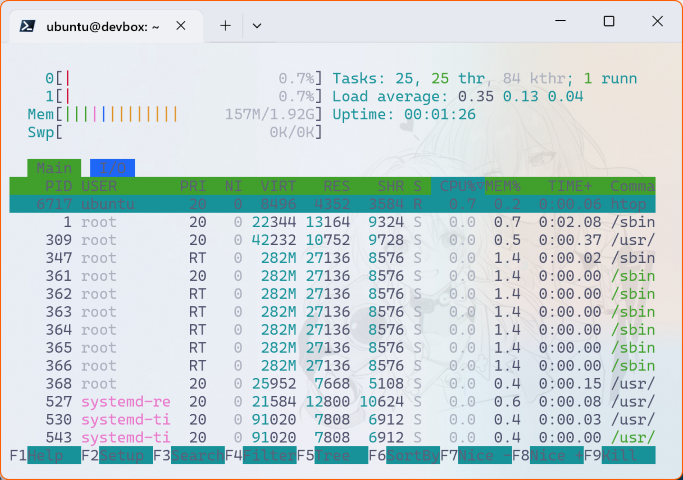
from here you will get information that this VM’s CPU is limited to 2 cores, according to the specifications we made, right?
once in the VM we can start installing the application we want to tinker with.
sudo apt update
sudo apt upgrade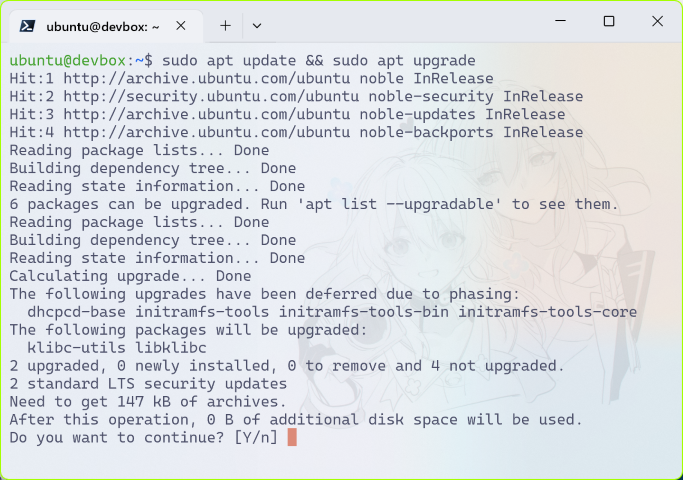
Let’s try installing podman and run the hello world container.
sudo apt install -y podman podman-docker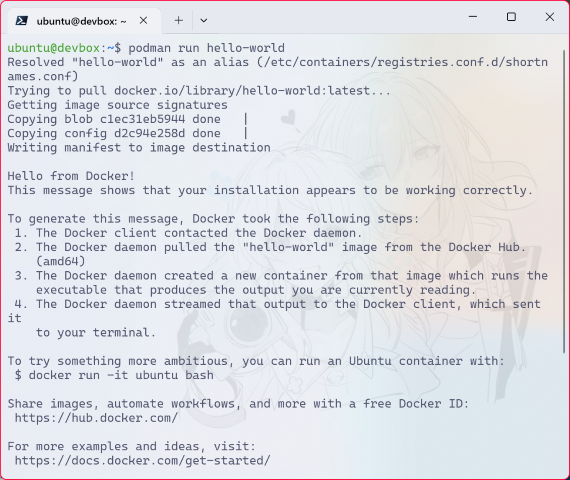
Delete VM #
If you feel you’ve had enough playing with the VM, you can delete it, and purge to free up the storage previously claimed by the VM.
multipass delete devbox
multipass purge
Conclusion #
- VM is one of the tools that can be included in daily equipment as an Application Developer.
- VM provides isolation and allows Developers to replicate an environment, to be as similar as possible to the conditions when running in a Production environment.
- Multipass provides convenience for Developers who are already familiar with Ubuntu and need help with VM tools